How Students Can Log In
How Students Can Log In
When students and families go to the magazine website, they’ll need to log in to see the student view. It takes only a few seconds, following these steps:
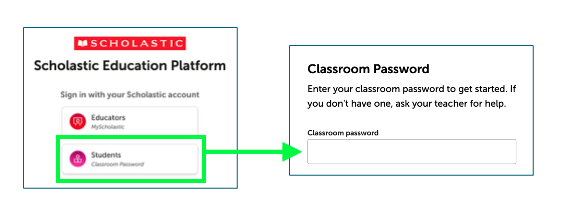
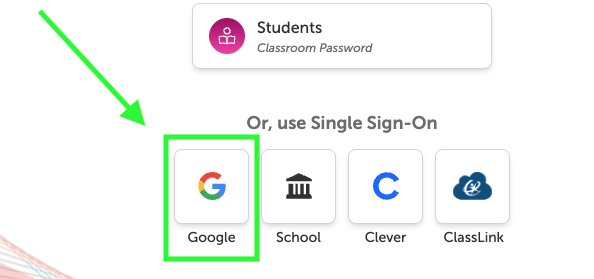
That’s it! Once they sign in, they're taken to the website's student view. And if your school uses Google Classroom, the process is even simpler. Once you sync your account with Scholastic, all your students need to do is click the Google button. They will not need a classroom password.
Finding Your Classroom Password
Finding Your Classroom Password
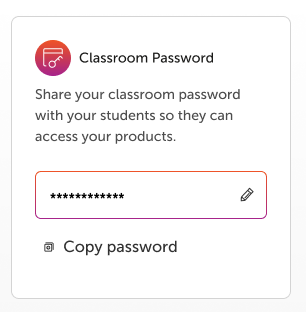
Looking for your classroom password? Click the silhouette icon on the top right of the website and go to your platform homepage.
On the right, you’ll see a box labeled Classroom Password. You can edit the password that’s there if you choose, then share it with your students. This is the password they’ll use to log in to the site.
If you’re using a learning management system like Google Classroom, you may also be able to set up single-sign on access for your students. Learn more about that here.
Using the Send-Home Letter
Using the Send-Home Letter
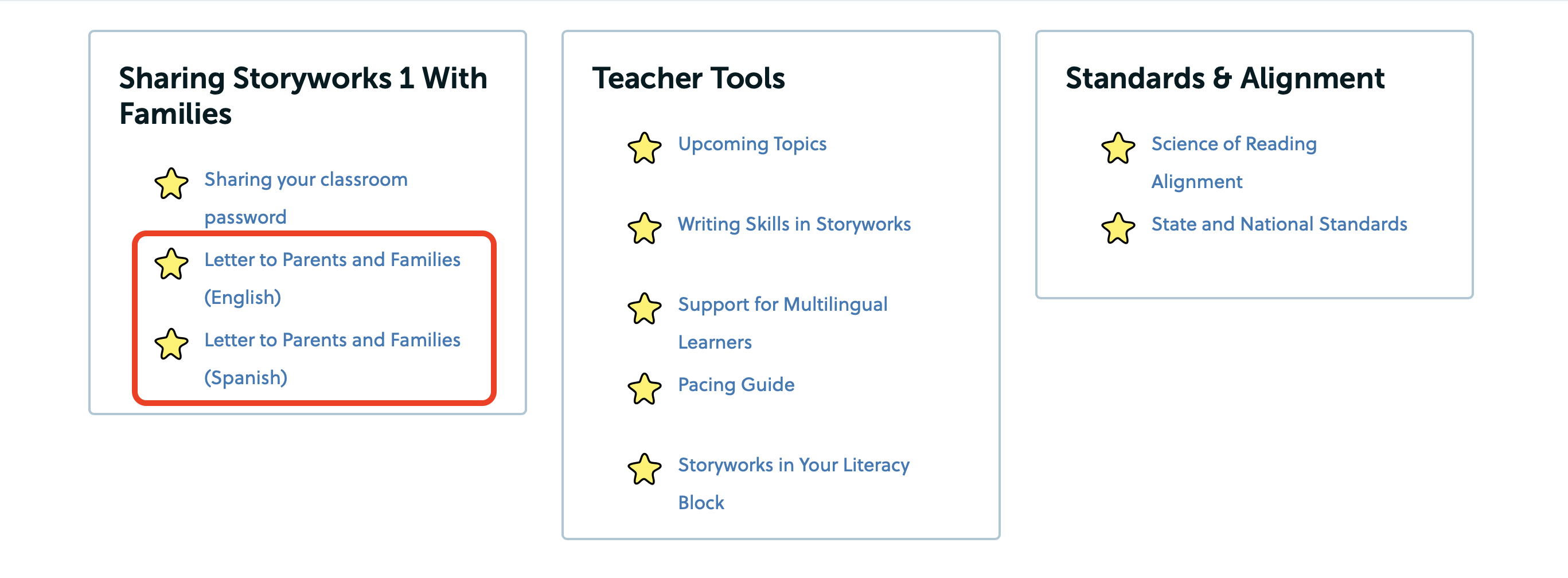
You can use your Send-Home Letter to let families know about Storyworks! This letter introduces families to My Big World online and provides an easy way to send home your Classroom Password. Families use the Classroom Password to sign in to the website.